
A $449.99 pair of headphones is clear to a US reader. Someone elsewhere may need to convert that price before they can judge the cost. Adding several currencies yourself means choosing which ones to include and keeping the amounts current.
We originally built AutoCurr for our own travel publication, Tasting Sunsets, where we regularly share JPY and EUR destination prices with international readers. Our case study shows it in use. Here is how to apply the same approach to a WordPress post or page.
The quick version
- Install and activate AutoCurr Free.
- Replace the source price with
[autocurr amount="449.99" currency="USD"]. - Publish the post or page.
- AutoCurr keeps the source price visible and adds the visitor’s relevant local currency when a valid conversion is available.
Pro provides a visual editor workflow if you prefer not to write shortcodes.
You mark each price you want AutoCurr to handle once. It does not scan your entire site and replace every number or price it finds. After that, visitor currency detection, conversion, display alongside the source price, and exchange-rate updates happen automatically.
Why manually converting prices becomes a problem
The headphones cost USD 449.99. That price matters because it is what the retailer charges, but an international reader may still need to convert it to get a feel for the cost.
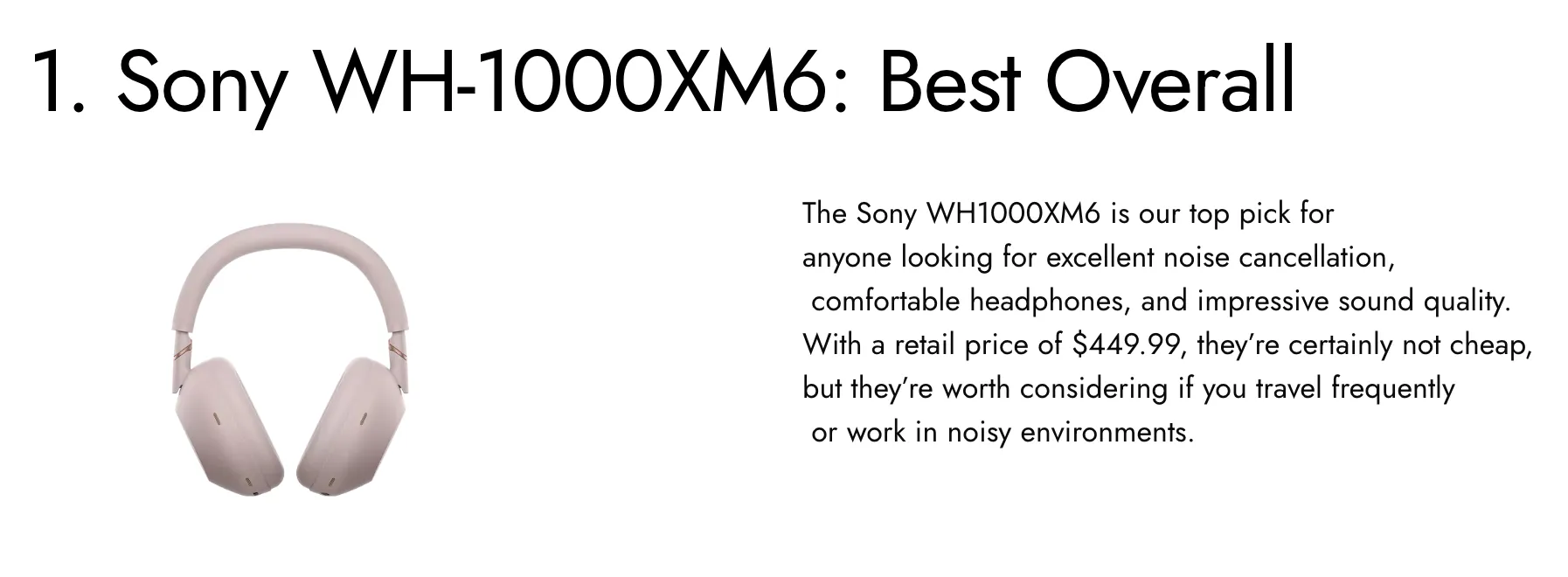
Before AutoCurr: the article shows only the original $449.99 price.
You could write EUR, GBP, and CAD equivalents beside it. Soon, though, a short sentence becomes a list of prices, and you still have not covered every reader’s currency.
Those extra amounts also need attention later. Exchange rates change even when the retailer’s USD price does not. You want to help readers understand the cost without adding a recurring editing job.
How automatic currency conversion works in AutoCurr
The workflow has three parts:
- You enter the real source amount and currency.
- AutoCurr determines the visitor’s relevant local currency and calculates the conversion.
- The original price stays visible, with the local amount added alongside it when available.
You maintain one source price rather than several manually calculated equivalents. AutoCurr handles exchange-rate updates in the background.
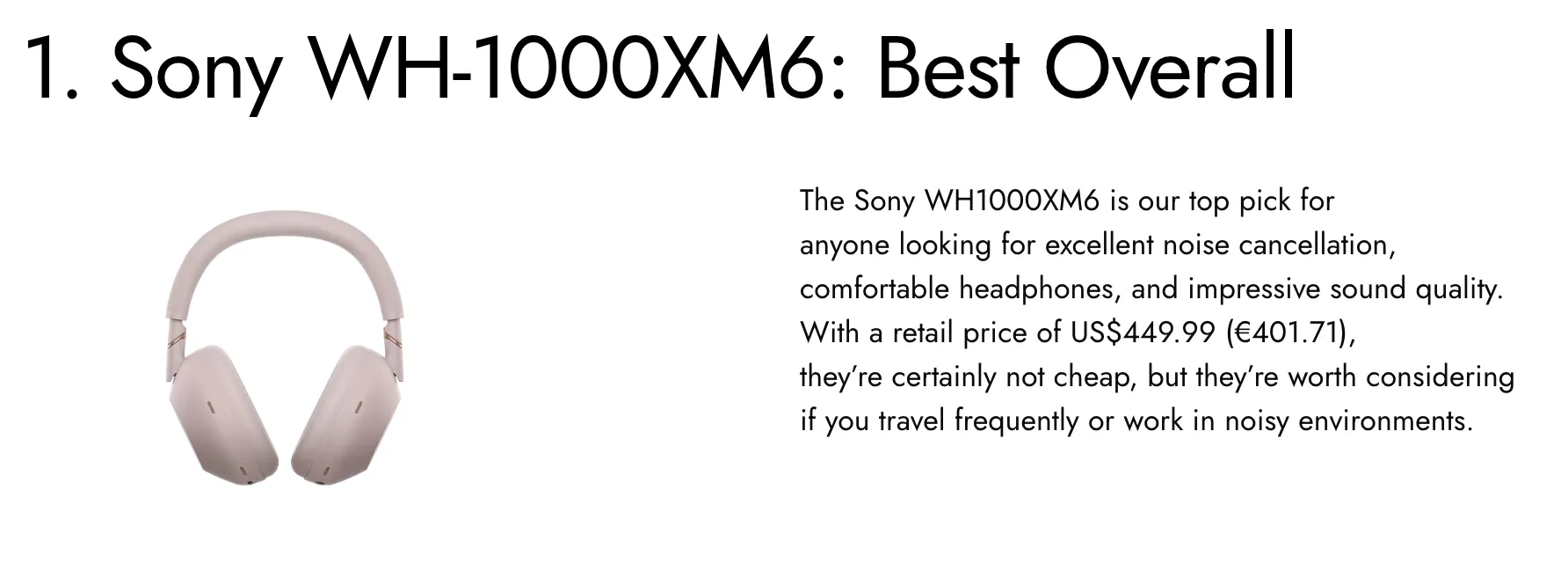
After AutoCurr: the source price remains visible, with a local conversion added. The screenshot captures one reader’s result at that time, not a fixed exchange rate. Formatting can vary with locale and display settings.
If the visitor’s currency matches the source currency, the price appears once. If AutoCurr cannot produce a conversion, it leaves the source price visible instead of inventing an amount.
Method 1: Add automatic currency conversion with AutoCurr Free
AutoCurr Free provides the conversion itself. You do not need Pro to show local currency alongside prices in a normal WordPress post or page.
Install and activate the plugin
Install AutoCurr - Local Currency Converter from WordPress.org and activate it on your WordPress site. No exchange-rate API key is required for the default setup.
If you need help with installation requirements, start with the Getting Started guide.
Add the source price with a shortcode
Open your post or page. In content that supports shortcodes, add this where the original price would normally appear:
[autocurr amount="449.99" currency="USD"]For example, your sentence can read:
A pair of headphones costs [autocurr amount="449.99" currency="USD"].In this example, the shortcode sits directly inside the product review sentence, as shown below.
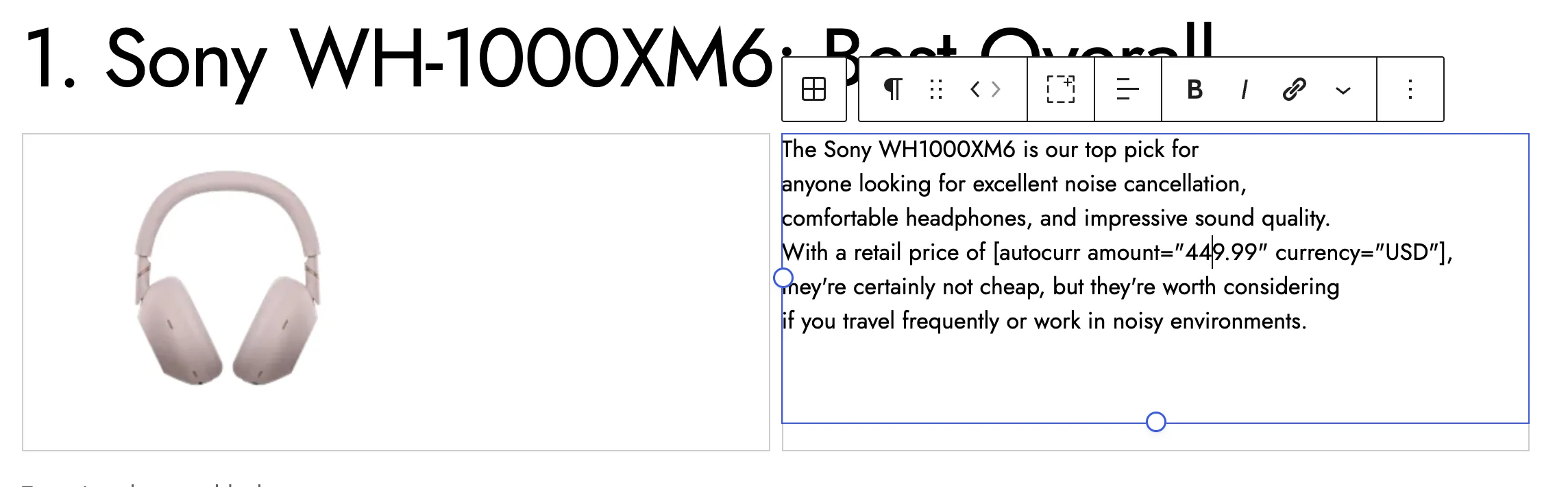
The shortcode replaces the written price, while the surrounding review stays normal article text.
The two required attributes describe the original price:
amount="449.99"is the source amount. Use a decimal point and no thousands separator.currency="USD"identifies US dollars as the source currency, not the reader’s target currency.
You do not need to write separate EUR, GBP, or CAD amounts. AutoCurr handles the visitor-local conversion. For other prices, change the amount and use the appropriate three-letter source currency code.
Check the published result
Save or update the article, then open the published page. Check that the original amount is correct and that you see a price rather than the shortcode text.
When AutoCurr can identify a different reader currency and obtain a rate, it adds that local amount alongside the source. A reader using USD may see only the source price, which is expected for this example.
If the output is not what you expect, check the amount and currency attributes first. The shortcode documentation covers accepted values and fallback behavior. The editor may still show the shortcode; check the published page for the converted price.
Method 2: Use the visual editing workflow with AutoCurr Pro
Prefer not to write shortcodes? AutoCurr Pro lets you select a source price, choose AutoCurr in the editor, review the amount and currency, and click Insert. This can save repeated typing when you add prices regularly.
Free stays active alongside Pro. The setup guide covers installation and activation.
Select the source price
Write the price normally or select an existing price in your paragraph. In this example, the editor contains $449.99.
Open the text formatting menu and choose AutoCurr. Depending on the editor layout, the control may appear within that menu rather than directly on the toolbar.
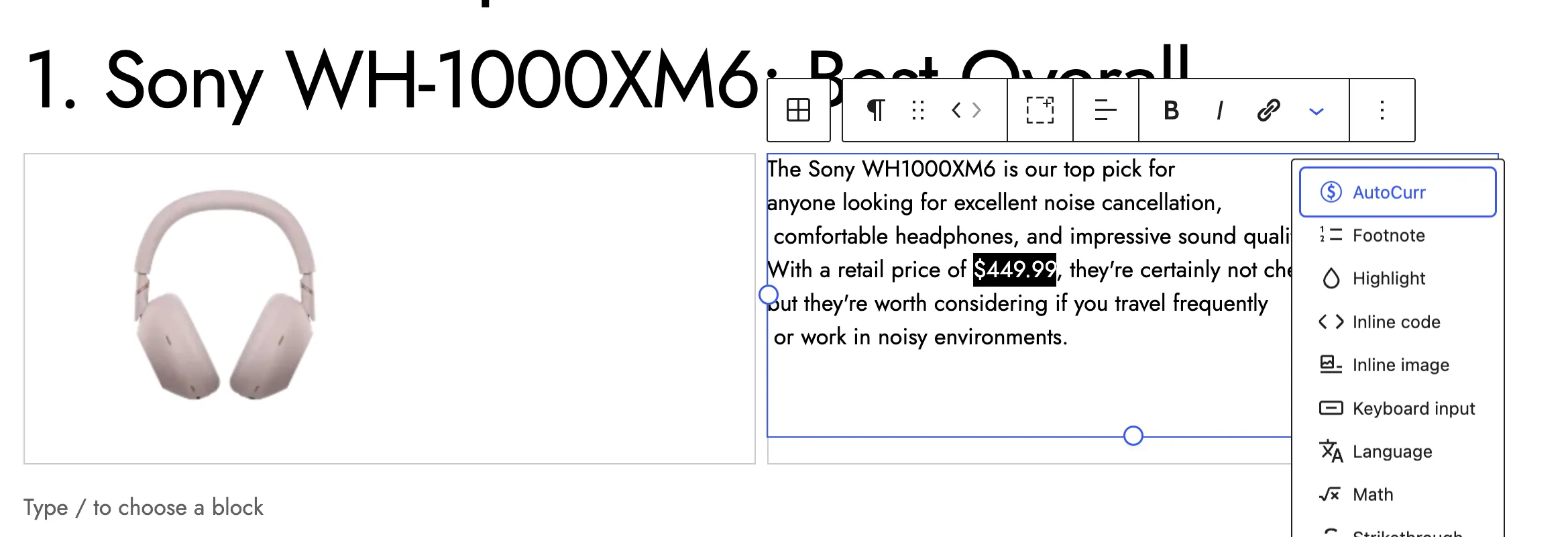
Select the price in the existing sentence, then choose AutoCurr.
Review the amount and insert the price
Review the recognized amount and source currency. Here, the amount is 449.99 and the source currency is USD. Checking the currency matters because a dollar symbol alone can refer to more than one currency.
Choose Insert to apply the inline price.
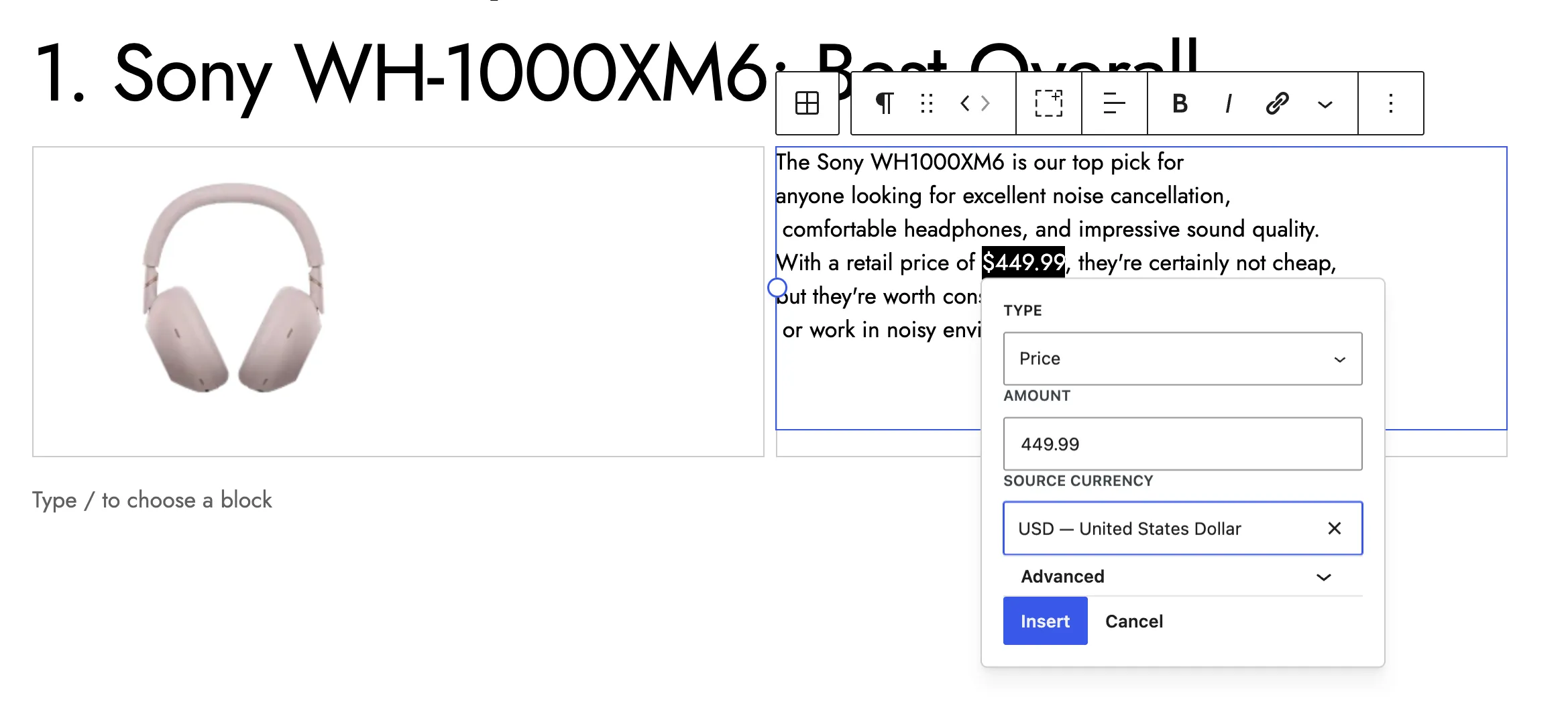
Confirm the source amount and currency before choosing Insert.
The editor shows the source price; the published page adds the reader conversion. Select an existing AutoCurr price to edit it later. See the Gutenberg authoring guide for the full controls.
Pro also includes a Price Library for reusable prices, display controls, a visitor currency switcher, localization rules, and daily exchange-rate refresh. These help with repeated or more complex publishing work.
Free gives you the conversion. Pro gives you the workflow. See AutoCurr Pro pricing if those authoring and maintenance tools fit your site.
Why keep the original currency visible?
The source currency often carries information the reader needs.
A traveler will pay JPY in Japan. A US retailer may charge USD. A ticket may officially be priced in EUR. A local conversion can help someone judge the cost, but it should not obscure the amount they will encounter at the destination or retailer.
For the headphones, USD 449.99 remains the reference price. The reader’s local amount helps them interpret it. It is not a promise that a retailer or payment provider will charge that converted amount.
Who is this useful for?
Automatic local currency context is useful when prices are part of the content readers are evaluating:
- Travel blogs sharing attraction prices, transport fares, and activity costs.
- Product-review sites discussing what an item costs.
- Affiliate publishers linking to retailers that price in another currency.
- Buying guides comparing options for an international audience.
- Resource sites listing memberships, courses, or other priced resources.
- Bloggers whose readers span several countries.
The common need is an understandable price inside a post or page. You can keep writing for your audience without manually choosing a handful of foreign currencies to display for everyone.
Do you need WooCommerce for automatic currency conversion?
No. AutoCurr works with prices inside normal WordPress posts and pages. It is useful when a price is editorial content rather than a WooCommerce product price.
A store currency switcher addresses a different use case. This tutorial covers the prices you write in articles, not changes to store, cart, payment, or checkout currencies.
For the headphone review, you are adding context to the price in the paragraph. You do not need to create a store product to do that.
How often are exchange rates updated?
Free provides automatic exchange-rate updates. Successful provider rates are cached for up to seven days.
Pro provides daily exchange-rate refresh. Successful provider rates are reused for up to 24 hours.
In both cases, a new rate is requested when needed after the cached rate expires. This is not a scheduled download at a fixed hour, and an already open page does not continuously recalculate its prices.
You still maintain the source price. If the retailer changes the headphone price, update that source amount in your content. Exchange-rate updates handle currency equivalents, not changes to the underlying product price.
The exchange-rate documentation explains caching and what happens when a rate is unavailable.
Do readers need to choose their currency?
No manual choice is required for the basic conversion. AutoCurr Free automatically determines the relevant visitor currency and adds the conversion when it can resolve that currency and obtain a valid rate.
Pro also provides a visitor currency switcher for publishers who want to offer manual control. A reader’s selection applies to AutoCurr prices on the page. Choosing Automatic restores automatic localization.
The choice can be remembered locally in that browser for the site. It is not an AutoCurr account preference. See the visitor currency guide for switcher behavior and setup.
Is an API key required?
No API key is required by default. You can install AutoCurr Free, add the shortcode, and use automatic conversion without supplying your own exchange-rate provider credentials.
You do not need an AutoCurr account for the Free workflow either. The source price remains the fallback if a conversion cannot be produced.
Make prices easier for international readers
Keep writing the actual price, such as USD 449.99 for the headphones. AutoCurr adds local context while preserving that source, so you do not have to maintain several currency equivalents yourself.
Start with the shortcode workflow. If adding and updating prices becomes a regular part of publishing, consider Pro’s visual editor and reusable-price tools.